Sharing Your Storefront

A storefront does its best work once clients know it's there. And almost every client who finds it will find it through you: a text after an appointment, a sign by the register, a quick mention while you're handing back the leash. All it takes is your link in the places clients hear from you, and your portal has a page built for exactly that.
This is the last part of our storefront basics series. If you haven't yet, start with personalizing your storefront and building your first collection. Then log in and open Share & sell.
Start on the Share & sell page
Everything for promoting your store lives on one page in your portal, Share & sell. Your storefront link sits on the right, with a Copy button and a View storefront button so you can check what clients will see. To change the link or connect your own domain, go to Store profile.
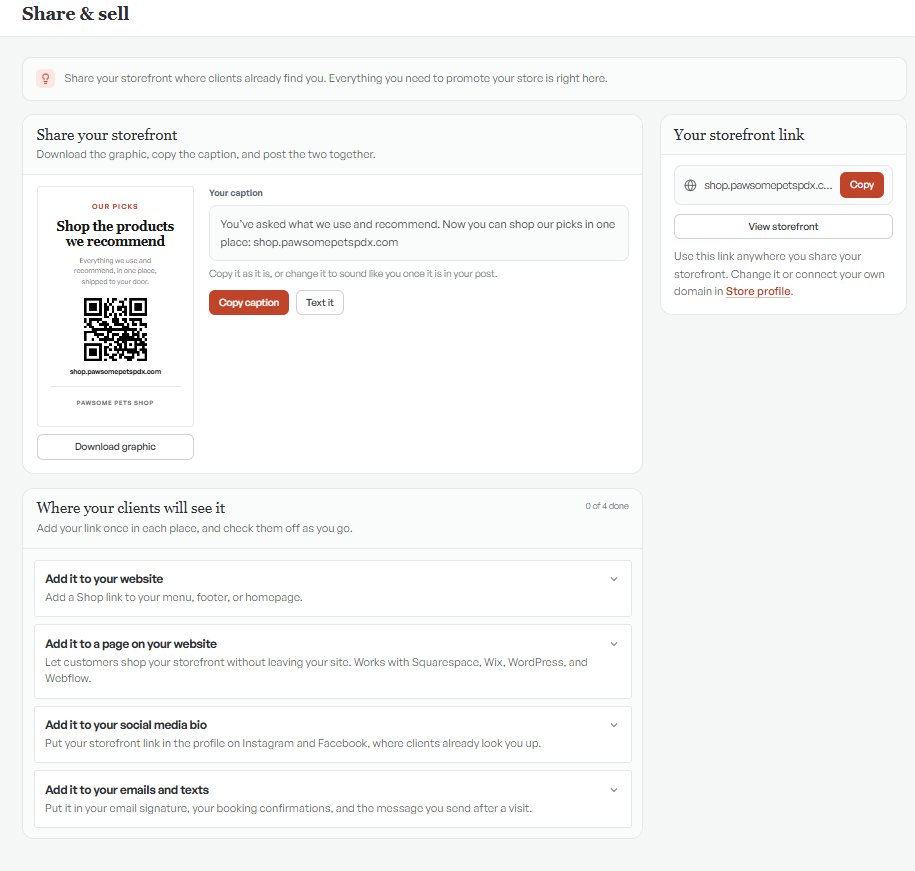
Post the ready-made graphic and caption
Under Share your storefront, you'll find a graphic made for your store. It reads "Shop the products we recommend," with a QR code, your link and your shop name. Select Download graphic to save it.
Next to it is a caption written for you: "You've asked what we use and recommend. Now you can shop our picks in one place," followed by your link. Use it as it is, or change it to sound like you once it's in your post. Select Copy caption and post the two together on Instagram or Facebook, or select Text it to send the caption by text.
Pew Research Center found that 51% of US adults use Instagram and 70% use Facebook (Pew, October 2026), so for most pros those two are the place to start.
Add your link where clients will see it
Below the graphic, Where your clients will see it lists four places to add your link once, with a check-off for each as you go:
- Your website: add a Shop link to your menu, footer or homepage.
- A page on your website: let customers shop your storefront without leaving your site. It works with Squarespace, Wix, WordPress and Webflow.
- Your social media bio: put the link in your Instagram and Facebook profiles, where clients look you up.
- Your emails and texts: your email signature, booking confirmations and the message you send after a visit.
Do one a day and you're done in under a week. Each one keeps working after that with no extra effort.
Bring it into the shop
The graphic works on paper too. Print it for the front desk, tape it near the register, or tuck it into the take-home notes you give: a groomer's report card, a trainer's homework sheet, a walker's visit note. Clients scan the QR code while they wait.
When you mention it in person, name one product: "Everything I used on Bella today is on my store, and the coat spray is the one I'd start with." Clients act on the thing you told them their pet needs.

Get your first sale
Pick one product you recommend every week. Mention it to your next five clients, and text each of them the link the same day while it's fresh. Regulars are a good place to start, since they trust your picks. One sale tells you the link works and gives you a real story to share next time.
Keep it fresh
Clients come back to a store that changes. Swap your Collection spotlight with the seasons, and share the link again whenever you do. With December coming, here's how to get your storefront holiday-ready, including the order-by date to give clients.
FAQ
Where do I find my storefront link?
On the Share & sell page in your portal, under Your storefront link. Select Copy to copy it, or View storefront to see what clients see. You can change the link in Store profile.
Can I use my own domain?
Yes. Connect your own domain in Store profile, and Share & sell will show that link.
Is there a QR code for my storefront?
Yes. The graphic on the Share & sell page includes a QR code with your link. Select Download graphic, then post it or print it for your front desk.
Can I add my storefront to my website?
Yes. Share & sell walks you through adding a Shop link to your menu, footer or homepage, or adding the storefront to a page so customers shop right on your site. It works with Squarespace, Wix, WordPress and Webflow.
Your link, in the right places
Log in, open Share & sell, and send your link to one client today. For the bigger picture, here's how pet pros earn from the products they recommend.
Log in to get your link